
How to Get Started with Account Intelligence
Sales teams spend hours researching potential leads before writing a single outbound message. The problem isn’t access to company information, it’s understanding how that information connects to your product, your positioning, and your sales strategy.
SalesPort Account Intelligence helps you generate contextual company research tailored to what you actually sell. By combining your product description, target companies, and strategic research questions, SalesPort uncovers relevant pain points, qualification signals, and outreach opportunities in minutes.
Goal:
Transition from raw company data to actionable account intelligence research tailored to your product and sales strategy in just a few minutes.
Who it’s for:
B2B sales, SDR, business development, and go-to-market teams that want to research target companies faster, personalize outreach at scale, and identify stronger sales opportunities.
What you get out of it:
You’ll understand how your product fits a target company, uncover relevant pain points and buying signals, and get actionable insights you can use for qualification, personalization, and outbound outreach.
TL;DR
Describe your product or service
Add strategic research questions
Create your target company list
Launch the Account Intelligence research
Review company-specific insights and buying signals
Identify personalization and qualification opportunities
Export the results or move directly into outreach
Starting Point: What’s Really Happening Here
In this example, we step into the role of Business Developer at Salesforce and use Account Intelligence to identify companies that may benefit from Salesforce Sales Cloud (Agentforce Sales).
We want to understand:
which companies are actively scaling sales operations
where operational inefficiencies may exist
and which signals suggest a strong fit for Salesforce’s sales infrastructure
Instead of manually researching hundreds of companies one by one, we use Account Intelligence to generate tailored research based on my product positioning and strategic research questions.
Step 1: Start a New Account Intelligence Research
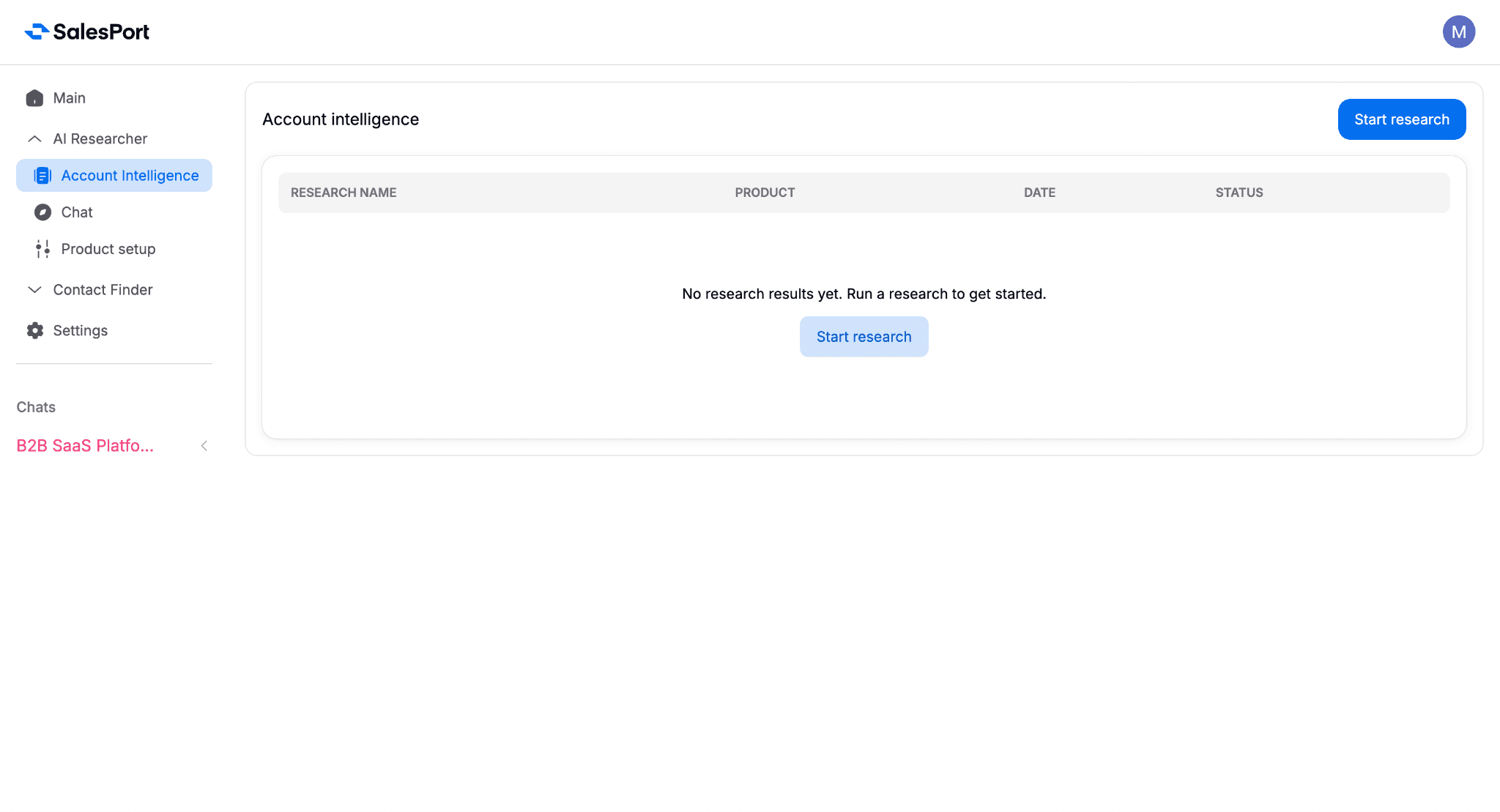
Account Intelligence dashboard showing the “Start research” button inside SalesPort.
To begin, open the Account Intelligence section inside SalesPort and click Start research.
This launches the Account Intelligence workflow where you’ll:
define your product to provide context
add target companies
generate AI-powered Account Intelligence tailored company research
Step 2: Create or Select Your Product
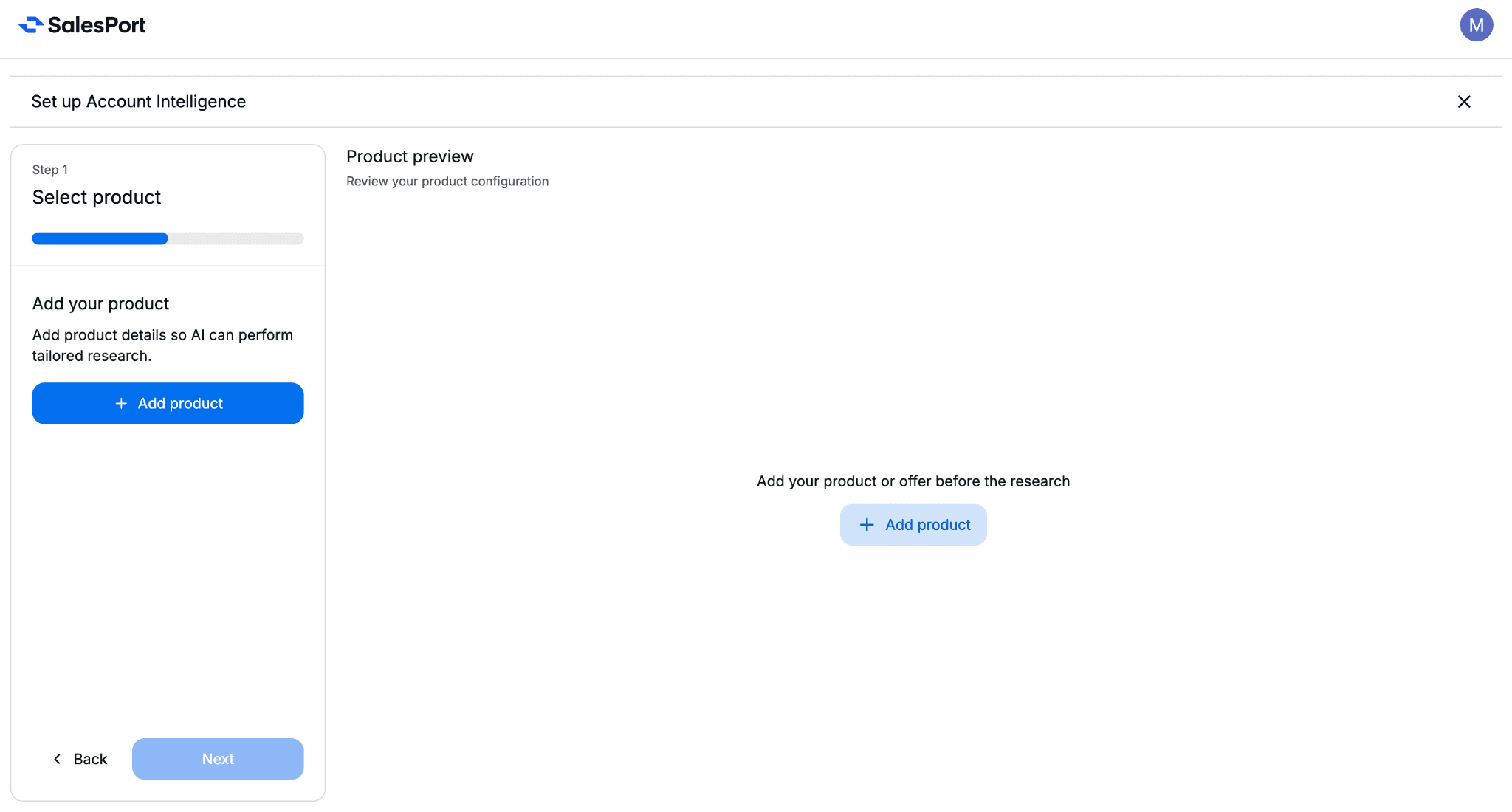
The Account Intelligence setup flow shows product selection and product creation.
Before starting the research, SalesPort needs to understand what you sell.
If you already created a product profile, you can select it immediately.
If this is your first time using Account Intelligence, click Add product to create a new product profile.
The product profile gives SalesPort the context needed to generate research tailored specifically to your offering instead of generic company summaries.
Step 3: Configure Your Product Context
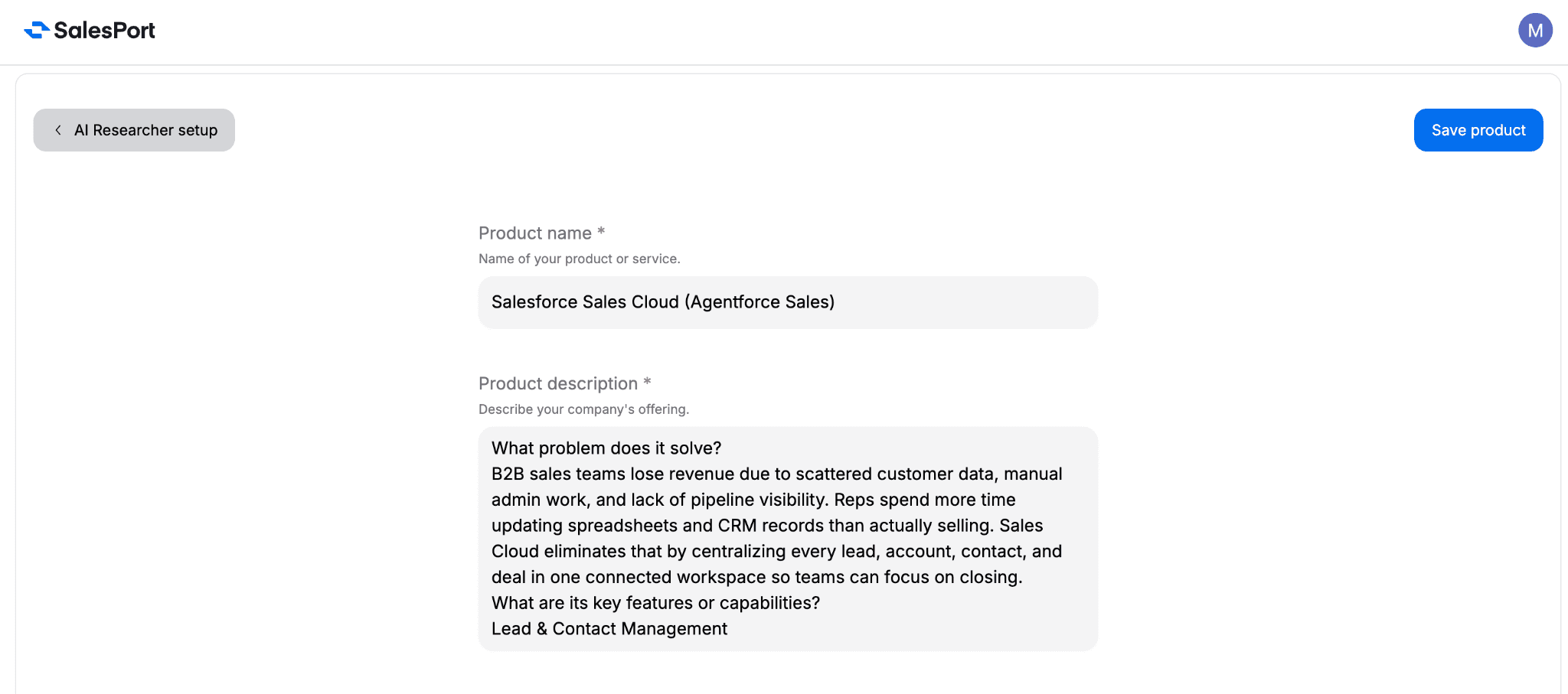
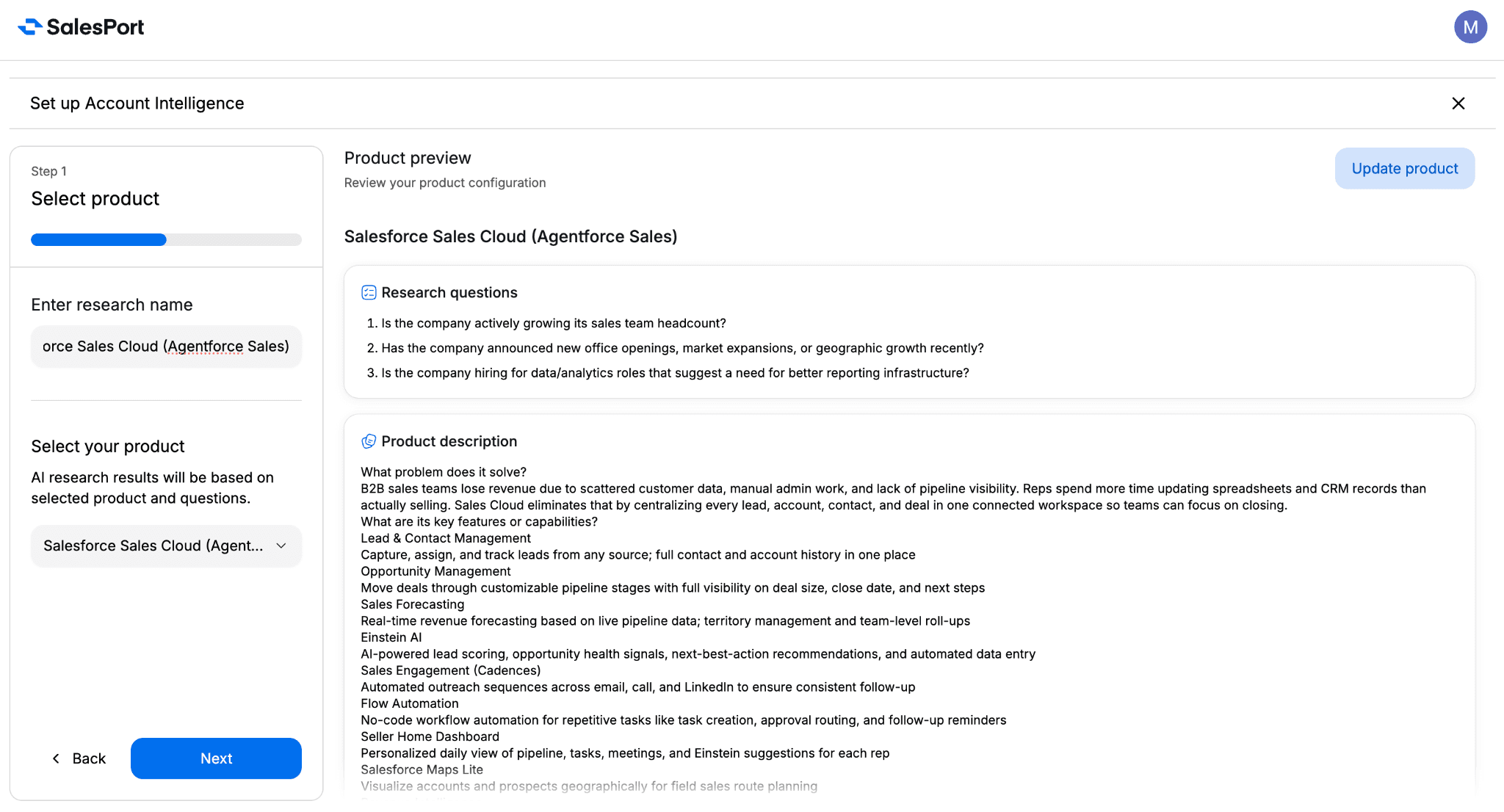
Salesforce Sales Cloud product setup inside SalesPort’s Platform shows the product description and positioning details.
With the product setup, we define:
what the product does
which problems it solves
key capabilities
what makes it unique
strategic research questions
Example Product:
Salesforce Sales Cloud (Agentforce Sales)
Product Description:
Salesforce Sales Cloud helps B2B sales teams centralize leads, accounts, contacts, and pipeline management inside one connected workspace. The platform improves visibility, forecasting, automation, and rep productivity while reducing manual administrative work.
What Makes It Unique:
AI-powered forecasting and pipeline insights
Deep CRM customization capabilities
Automated sales engagement workflows
Centralized customer and deal management
Large integration ecosystem through Salesforce AppExchange
The more context you provide, the more relevant and actionable the Account Intelligence research becomes.
Step 4: Add Strategic Research Questions
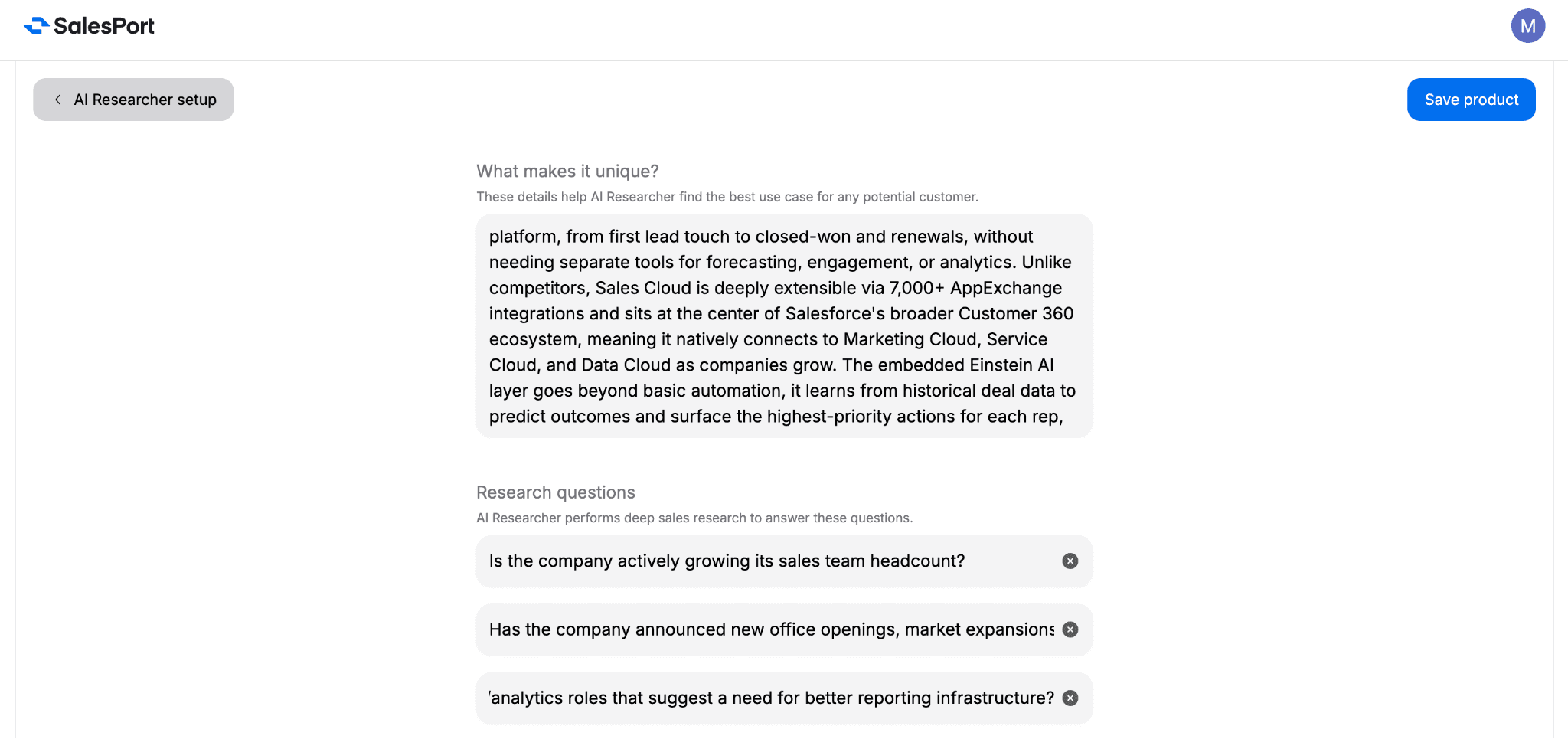
All research questions are configured within the Salesforce product profile.
These research questions describe Account Intelligence, what signals and opportunities to look for during the analysis.
In this example, we want to identify companies that may be scaling revenue operations and experiencing growing sales complexity.
Example Research Questions:
Is the company actively growing its sales team headcount?
Has the company announced new office openings, market expansions, or geographic growth recently?
Is the company hiring for data or analytics roles that suggest a need for better reporting infrastructure?
These questions help SalesPort’s AI to connect the company activity directly to Salesforce’s value proposition.
Step 5: Review the Product Configuration
The preview screen shows the configured Salesforce profile and the associated research questions.
Once the product profile is complete, SalesPort generates a preview showing:
the selected product,
the product description,
the research questions that will guide the analysis
We also enter a research name to organize the project before moving to the next step.
It’s recommended to name your research based on:
the goal of the research
the segment you’re targeting
or the source of the accounts
For example:
Salesforce Sales Cloud - Agentforce Sales Plan - EU
Enterprise ERP Expansion Companies
EU Fintech SDR Research Q1
ABM Target Companies - DACH
Clear naming conventions make it much easier to organize and revisit research projects later. Naming every research after the product itself becomes confusing quickly once you have multiple researches running.
Step 6: Create Your Account List
Account list creation workflow with CSV upload and manual company input.
Now it’s time to add the companies you want to research.
SalesPort supports two ways of building your company list:
manual company entry
or CSV upload for bulk research.
Manual Company Entry
If you want to add companies individually, click Add manually and enter:
the company name
the company domain.
This is useful for smaller research projects or highly targeted company lists.
CSV Upload
If you want to research multiple companies at once, you can upload a CSV file.
To make the process easier, SalesPort provides a downloadable CSV template directly in the left sidebar. The template already includes the correct structure required for Account Intelligence.
The CSV file must contain exactly two columns:
company_namedomain
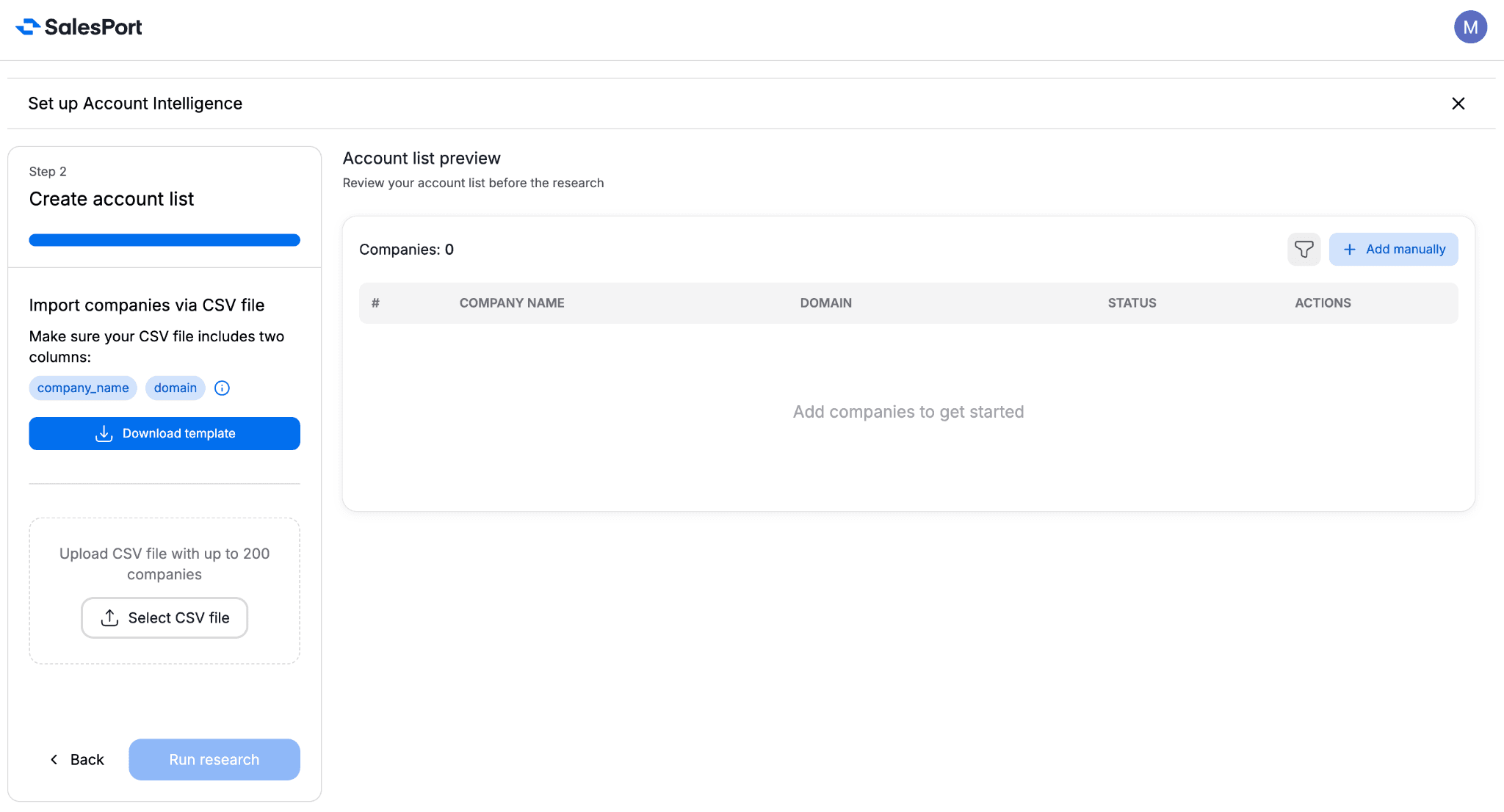
Currently the Account Intelligence supports up to 200 companies per research. But let us know if you need more!
In this example, we upload a list of enterprise companies such as:
Siemens
SAP
Capgemini
BNP Paribas
Accenture
Delivery Hero
SalesPort automatically validates the company domain and filters duplicates before launching the research.
Step 7: Review Validation Status and Credits
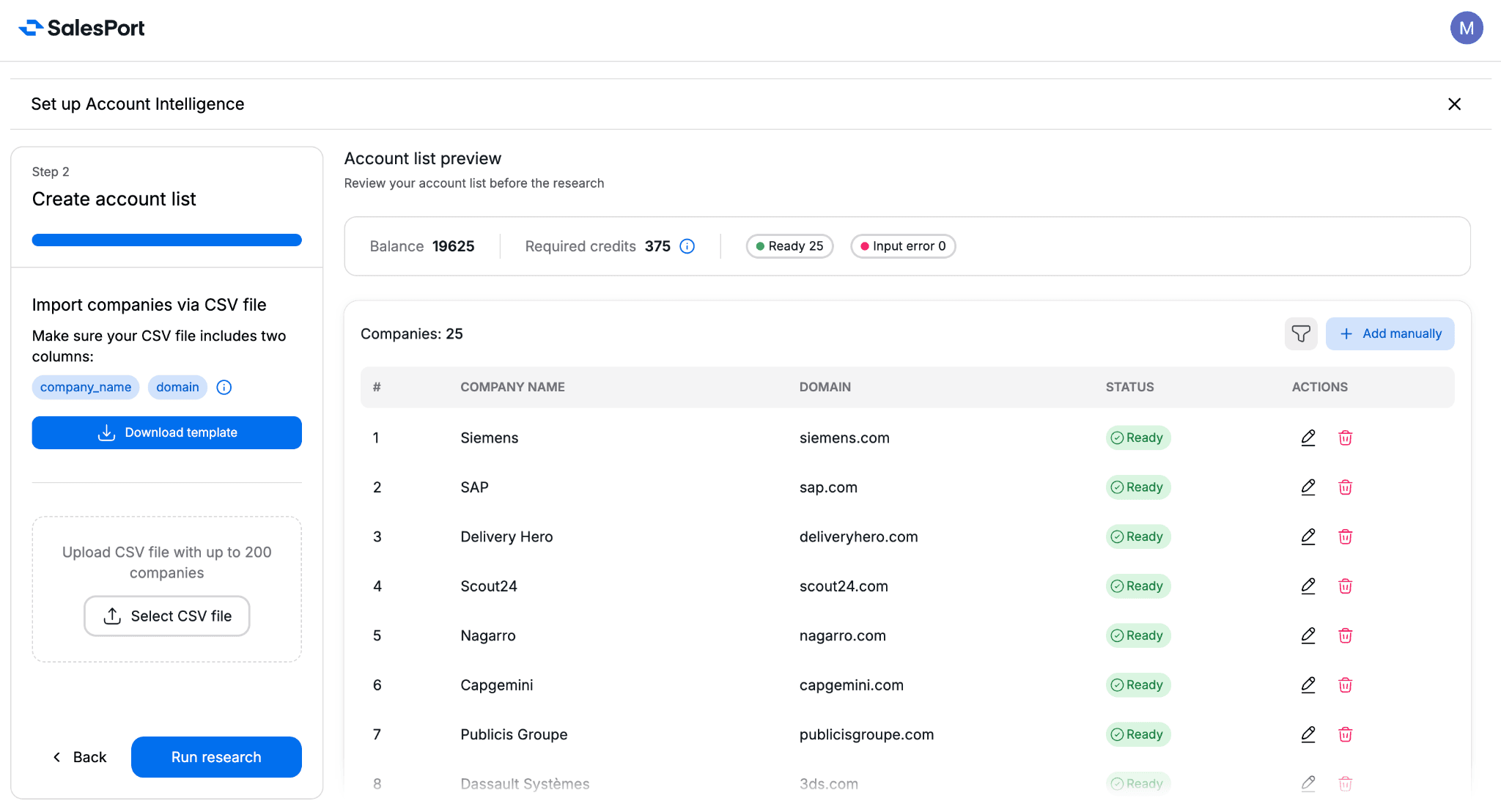
Validated company list showing required credits and ready statuses.
Before starting the research, SalesPort validates all uploaded companies and calculates the required research credits.
At this stage, we can:
review company statuses
fix invalid records
edit entries
remove problematic rows
and confirm the final company list
If any company contains invalid data, the research cannot start until the issue is fixed.
SalesPort automatically validates uploaded companies and highlights records with Input error statuses. To simplify the review process, you can use the status filters above the account list to quickly switch between:
all companies,
ready companies
and companies containing input errors.
This makes it easy to isolate problematic records without manually reviewing the entire list.
Step 8: Launch the Research
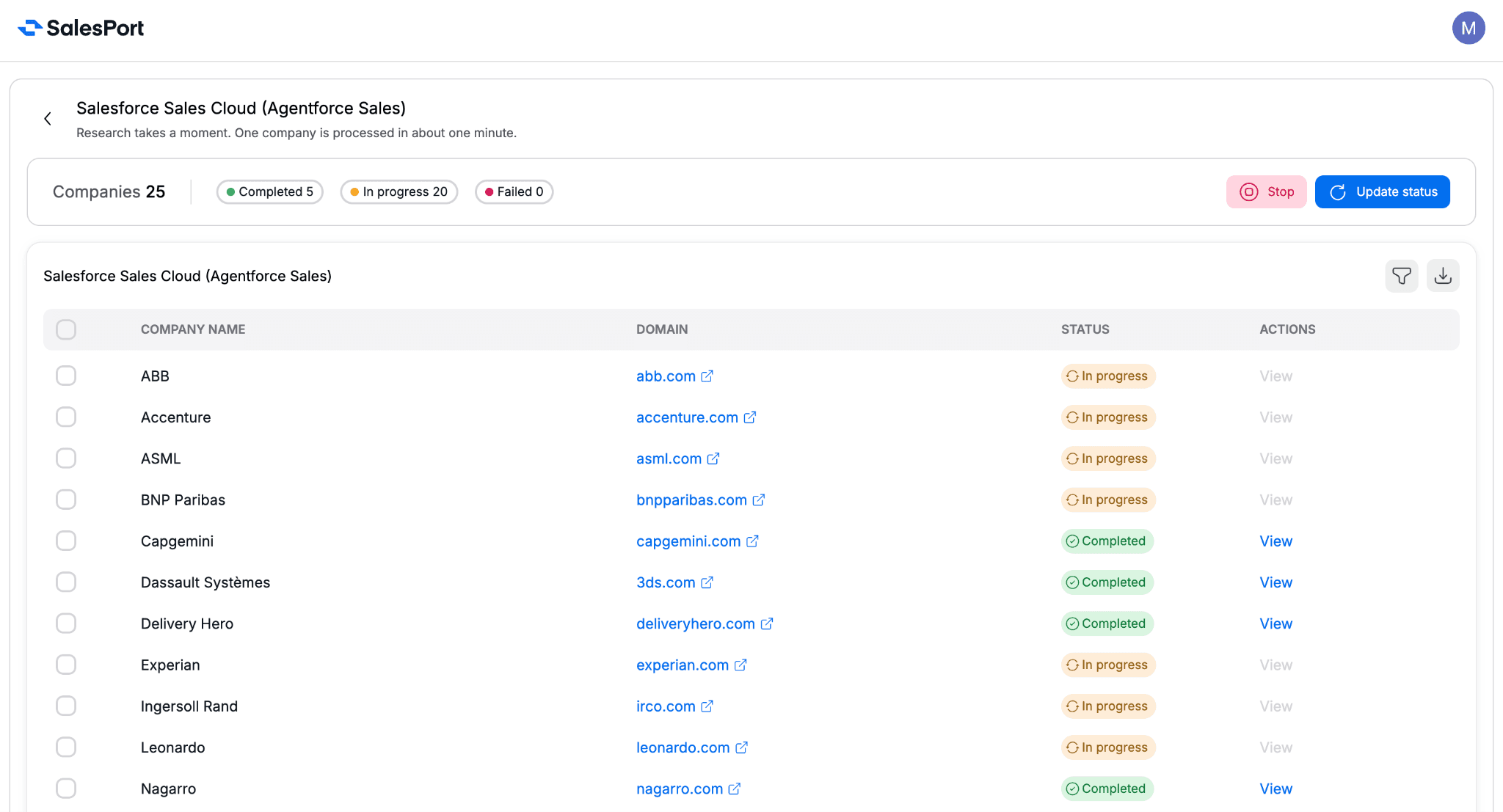
Account Intelligence processing companies and generating research results.
Once everything is ready, we click Run research.
SalesPort begins analyzing every company against:
the Salesforce product profile
the defined research questions
publicly available business signals & information
Each company is processed individually, and research statuses update in real time:
In Progress
Completed
Failed
The Update status button refreshes the latest task results during processing.
Step 9: Review the Account Intelligence Results
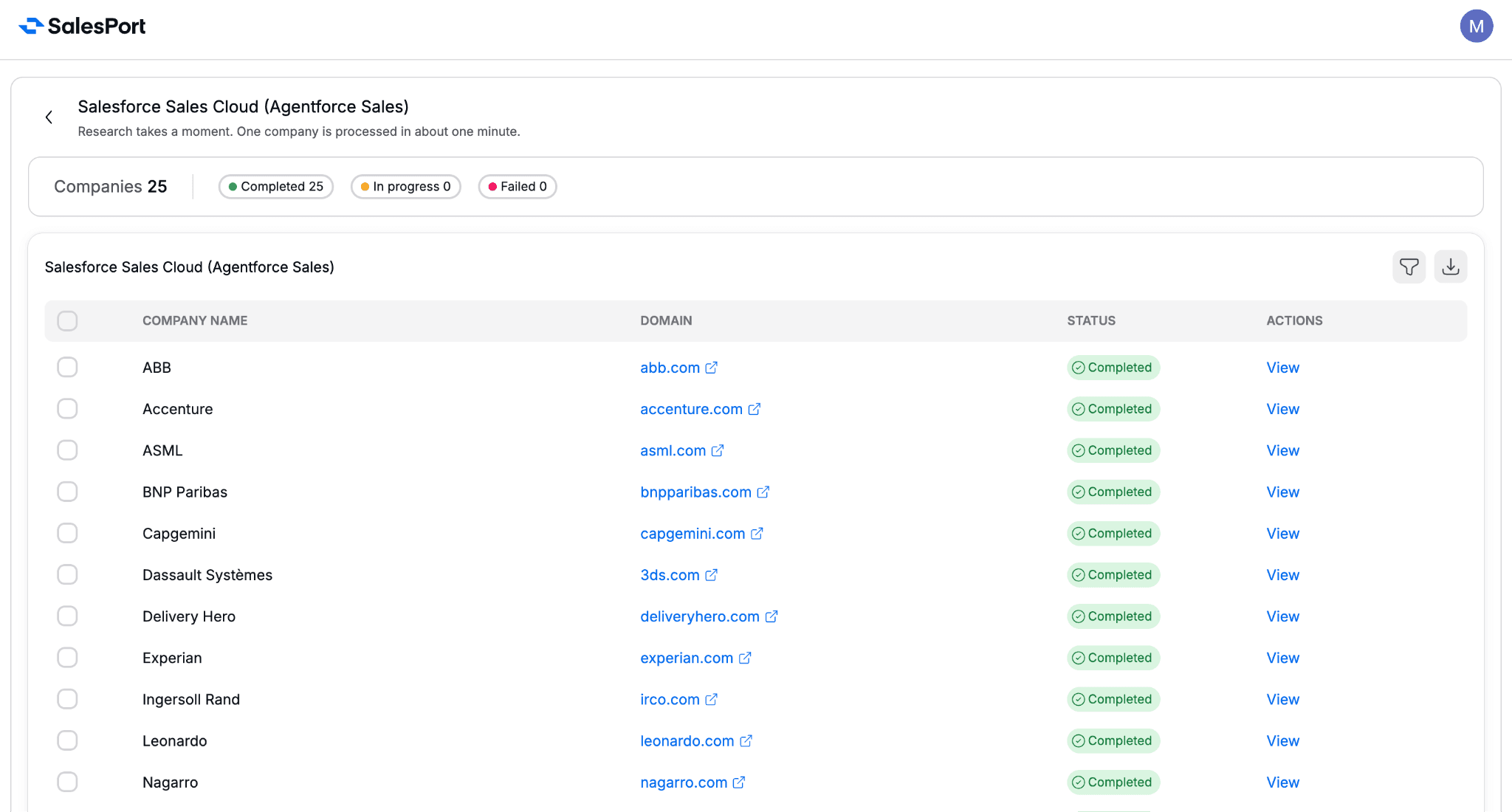
Completed Account Intelligence research showing finished company analysis.
As the research completes, we can open individual company reports and review detailed findings.
Each report answers the strategic research questions using:
company data
hiring signals
growth activity
operational indicators
linked public sources
Instead of generic company summaries, the output is directly connected to Salesforce’s positioning and ideal customer profile.
Step 10: Analyze the Insights
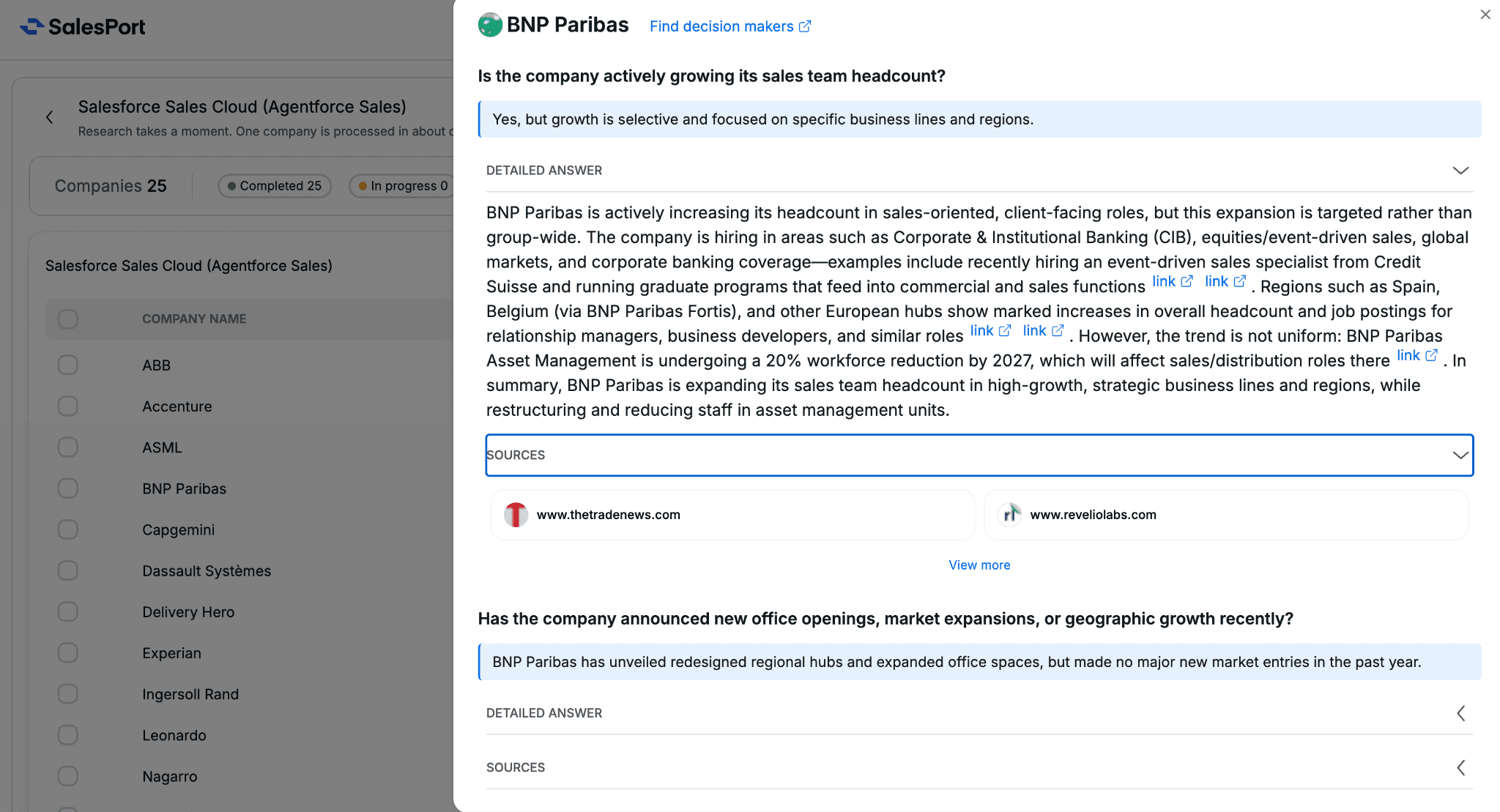
Detailed BNP Paribas research result showing hiring growth analysis and expansion signals.
For example, when reviewing BNP Paribas, Account Intelligence identifies:
selective sales headcount growth
regional expansion activity
hiring patterns
operational changes connected to revenue teams
The report also includes:
summarized insights
detailed explanations
supporting public sources.
This allows us to quickly determine:
whether the company fits my product
where operational complexity may exist
how Salesforce could potentially create value
Step 11: Use the Research for Outreach and Qualification
Completed Account Intelligence dashboard showing finished research projects.
At this point, we already have:
target companies researched
qualification signals identified
operational context
and potential sales opportunities uncovered
Instead of spending hours manually researching companies, we can immediately move into:
account prioritization
SDR qualification
meeting preparation
or deeper prospecting workflows
The research can also be exported for CRM enrichment, internal collaboration, or sales planning. To export the results, simply select the companies you want to include and click the export icon in the top-right corner of the research table.